

We were promised a tech utopia.
Remember the days when every device required its own proprietary charger? Laptops had massive brick connectors, phones had Micro-USB or Mini-USB, digital cameras had weird rectangular plugs, and iPads had 30-pin monstrosities.
Then came USB Type-C.
It was supposed to be the “one cable to rule them all.” One sleek, flippable port that could power your MacBook, charge your Android phone, hook up a 4K monitor, and transfer gigabytes of data in seconds.
Fast forward to today: You plug a USB-C cable into your monitor, and nothing happens. You plug another into your phone, and it takes four hours to charge. You try to transfer photos from your camera, and it moves at painful, decade-old speeds.
What happened?
Here is the dirty secret of the tech industry: USB-C is just a physical shape. What happens inside that shape is a wild west of protocols, power standards, and data speeds.
Let’s unpack the technical madness behind USB-C, how to tell what your cables actually do, why brands still ship USB-A to C cables, and how to buy cables without getting burned.
The Great Split: Form Factor vs. Protocol
To understand why USB-C causes so many headaches, you must understand a fundamental distinction:
- USB Type-C is a Shape (Form Factor): It refers strictly to the 24-pin physical connector and receptacle.
- USB 2.0 / 3.2 / 4 / Thunderbolt are Protocols: These are the language, rules, and speeds that travel over those physical copper wires.
Just because a cable fits into a USB-C hole doesn’t mean it speaks the same language as your device. It is like an Indian plug socket: the physical shape remains the same, but whether it supplies electricity to a 5W night lamp or a 2000W geyser depends on the wiring behind the wall.
Anatomy of a Port: How USB-C Works Technically
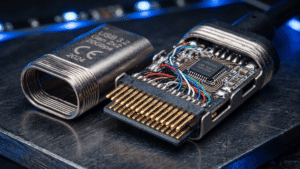
Look inside a full-featured USB-C receptacle, and you will see a tiny tongue with 24 pins arranged in two rows of 12 (labelled Row A and Row B). Because the pins are mirrored symmetrically, you can flip the cable upside down, and it still works. If you look at it, this is the exact opposite of Lightning, which has pins in the centre (the male connector) and fits into a slot, whereas with USB-C, the male connector has pins all around the slot and fits into a port that has the centre piece waiting to receive the connection.
The actual pins and their relevance are a bit technical; hence, we have mentioned them towards the end of this post.
Full-Featured vs. Cost-Cut Ports
Not every USB-C port is created equal on the circuit board:
- Full-Featured 24-Pin Ports: Found on high-end laptops, flagship smartphones, and Thunderbolt docks. They connect all High-Speed SuperSpeed lines, CC lines, and power rails.
- 16-Pin Ports: Often used on mid-range devices. They keep USB 2.0 data, CC lines, and power, but drop the high-speed differential pairs to save cost.
- 6-Pin / Power-Only Ports: Common in cheap budget gadgets (like rechargeable trimmers, cheap wireless earbuds, or desk fans). They contain only VBUS, GND, and CC lines. They carry zero data and cannot pass video signals.
The Speed Spectrum: Data Formats over USB-C
When USB-IF (the governing body behind USB) named these standards, they caused massive confusion. Here is the translation matrix for what speeds you are actually getting:
  [ USB 2.0 ] ---------- 480 Mbps  (60 MB/s)
  [ USB 3.2 Gen 1 ] ---- 5 Gbps    (625 MB/s)  <- Formerly USB 3.0 (crazy naming, seriously!)
  [ USB 3.2 Gen 2 ] ---- 10 Gbps   (1.25 GB/s)
  [ USB 3.2 Gen 2x2 ] -- 20 Gbps   (2.5 GB/s)
  [ USB4 / TB3 ] ------- 40 Gbps   (5 GB/s)
  [ USB4 Gen 4 / TB5 ] - Up to 120 Gbps
TB = ThunderBolt- USB 2.0 over Type-C (480 Mbps): Surprising as it sounds, almost ALL bundled charging cables that come with smartphones (including iPhones and Samsung Galaxies) are USB 2.0. They use only 4 wires inside the cable. (& we thought they were helping us save the ecology)
- USB 3.2 Gen 1 & Gen 2 (5 Gbps to 10 Gbps): Standard fast data cables. Requires all high-speed pins to be wired.
- USB 3.2 Gen 2×2 (20 Gbps): Uses two lanes of 10 Gbps simultaneously. Many MacBooks skip support for 2×2 altogether! (so, Apple-like!)
- USB4 & Thunderbolt 3/4 (40 Gbps): Thunderbolt is Intel’s protocol that merged with USB4. It requires active microcontrollers inside the cable connectors to maintain signal integrity at extreme bandwidths.
- Thunderbolt 5 / USB4 2.0 (80 Gbps to 120 Gbps): Designed for extreme workstation setups driving multiple 8K displays simultaneously.
Alternate Modes (DisplayPort & HDMI)
USB-C uses Alt Mode to reconfigure its high-speed lanes. When you hook up a USB-C cable to a monitor, the CC pin talks to the monitor and says: “Hey, stop sending USB data on lanes 1 through 4. Turn those lanes into DisplayPort video channels!” (now this is the part that fascinates us!)
If your cable lacks those physical wires, your monitor remains stubbornly blank.
Power Delivery (USB-PD): Only Data, or Power Too?
Every USB-C port can deliver basic power (5V at 500mA to 3A = 2.5W to 15W). However, modern high-speed charging relies on USB Power Delivery (USB-PD).
USB-PD is an active negotiation protocol handled over the CC (Configuration Channel) pin:
[Charger] <-- "I can give 5V, 9V, 15V, or 20V at up to 5A" --> [Laptop]
[Charger] <-- "Give me 20V at 3.25A (65W), please" ---------- [Laptop]
[Charger] === [Sends 20V safely down VBUS rail] ============> [Laptop]
The Power Delivery Tiers
- Standard Power Range (SPR): Delivers up to 100W (20V @ 5A).
- Extended Power Range (EPR): Introduced in USB-PD 3.1. Scales voltage up to 48V, allowing a staggering 240W (48V @ 5A) over a single USB-C cable! This is enough to power heavy gaming laptops.
- Programmable Power Supply (PPS): A subset of USB-PD that allows the device to dynamically request micro-adjustments in voltage (e.g., asking for 9.2V instead of jumping straight to 12V). This keeps phone batteries cool during fast charging (used heavily by Samsung, Pixel, and Nothing).
Crucial Rule: Cables meant to carry over 3A (60W) MUST contain an E-Marker chip inside the plug housing. Without an E-Marker chip safety system, the charger will cap power delivery at 60W to prevent the wire from melting.

Can You See and Tell? Identifying Cables & Ports
Can you look at a USB-C cable or port and figure out its capability with your bare eyes?
Most of the time: NO. And that is the biggest design flaw of the ecosystem. However, here are subtle clues to look for:
How to Inspect a Cable
- Check the Pin Count Inside the Plug:
- Look inside the metal tip of the cable. If you see only 4 to 6 metallic contacts, it’s a USB 2.0 power-only cable. If it is crammed full of contacts on top and bottom, it is a Full-Featured SuperSpeed cable.
- Look for USB-IF Logos: Officially certified cables print icons on the plastic sleeve:
- A battery icon with 60W or 240W.
- A speed badge: 40Gbps, 20Gbps, or a Thunderbolt lightning bolt symbol with a number
3,4, or5.
- Cable Thickness (Gauge): 240W EPR or Thunderbolt 4 cables are noticeably thicker, stiffer, and shorter (usually under 0.8 meters for passive Thunderbolt cables) due to heavy copper shielding.
How to Inspect a Port on Your Device
Laptops often print small silk-screen symbols next to the port:
- Battery Icon: Port supports charging the laptop (USB-PD In).
- DisplayPort ‘D’ Logo: Port supports Video Output (Alt-Mode).
- Lightning Bolt: Thunderbolt 3/4/5 port (Supports maximum data, video, and charging).
- No Icon at all? You will need to check the spec sheet of your device manufacturer.
Why Do Some Brands Still Use USB-A to USB-C Cables?
If USB-C to USB-C is so modern, why do brands like OnePlus, Realme, Xiaomi, and Vivo still bundle USB-A to USB-C cables in the box?
The answer boils down to Proprietary Fast-Charging Protocols.
Standard USB-PD Charging:
[Standard Charger] --- Negotiates via CC Pin ---> [Phone] (Needs C-to-C)

Proprietary Fast Charging (VOOC / Warp / SuperVOOC):
[Custom Charger] --- Communicates via Modified D+/D- Pins ---> [Phone] (Uses A-to-C)
- Custom Pinouts: Brands like Oppo/OnePlus modify the physical USB-A socket on their charger, adding an extra micro-switch or wide pin to handle high current (6A to 11A at low voltages like 5V or 11V).
- Cost of Redesign: USB-PD chips cost more than simple custom microcontroller circuits built into legacy USB-A power adapters.
- Legacy Infrastructure: Millions of power banks, wall sockets, and cars in markets like India still feature standard USB-A ports.
However, the industry is shifting. With regulations pushing for universal charging standards, brands are gradually transitioning to USB-PD compatible C-to-C setups.
Buying Guide: Reliable Cables for Every Use Case
To save you from burning your money (or your hardware), here are recommended cable specifications based on your specific need:
1. For Daily Phone & Earbud Charging
- What you need: USB 2.0, 60W USB-PD support.
- Why: You don’t need high data speeds to charge a phone; you need flexibility and durability.
- Reliable Pick:
- Anker 310 / 515 Series
- Belkin Apple Certified Braided Cable
- Stuffcool Quad Cable. (Our co-founder swears by this one, and it’s always in her purse)
2. For Laptops & Ultra-Fast Phone Charging
- What you need: USB-PD 3.1, 100W or 240W rated, E-Marker chip integrated.
- Why: High current requires safety chips to ensure the cable doesn’t overheat during 20V/48V power negotiation.
- Reliable Pick:
3. For External SSDs & High-Speed Data Transfers
- What you need: USB 3.2 Gen 2 (10Gbps) or Gen 2×2 (20Gbps).
- Why: USB 2.0 cables will choke your 1000 MB/s NVMe external drive down to a miserable 35 MB/s.
- Reliable Pick:
- Cable Creation USB 3.2 Gen 2 Cable
- Ugreen Type-C Cable 0.5M
- Tobo Right Angle Cable (yes, just for the form factor!)
4. For Monitored Workstations, Docks & Thunderbolt
- What you need: Thunderbolt 4 / USB4 Certified Cable (40Gbps, 8K Video, 100W/240W PD).
- Why: Handles everything at once—4K/8K displays, daisy-chained drives, and full laptop power over one single line.
- Reliable Pick:
- StuffCool Primus: Braided. 240W. (The author personally uses the 1.8M option)
- Anker Zolo Thunderbolt 4 Cable
- Belkin USB-IF Certified
The Cheat Sheet Summary
- USB-C is a physical shape, not a speed or power rating.
- Charging speed depends on USB-PD support and whether the cable has an E-Marker chip.
- Video output requires DisplayPort Alt Mode support built into both the port and the cable.
- Fast data transfer requires extra copper pairs inside the cable—cheap phone charging cables drop these to cut costs.
- When in doubt, buy a Thunderbolt 4 / USB4 cable—it is backwards compatible with every USB-C standard in existence!